The following article covers how to set up MiCollab on your devices and use it to access your College phone and voicemail from anywhere.
Before you start, you will need the following:
- A Bryn Mawr College account
- A Bryn Mawr College phone extension
- A device with internet access, like a phone or computer
What is MiCollab?
MiCollab is an online service by Mitel that allows you to make calls, check your voicemail, and set your status for call forwarding.
MiCollab can be accessed on:
- An internet browser, at owlphone.brynmawr.edu
- A College computer, by installing the MiCollab app in Software Center
- A personal computer, using the Windows or macOS installers
- A mobile device, by installing the MiCollab app on the App Store or Google Play Store
First-time setup
If you are using the MiCollab app on any device, you will need to sign into owlphone.brynmawr.edu to complete the deployment process:
- Open the MiCollab app on your device
- On your laptop or desktop, navigate to owlphone.brynmawr.edu
- Log in with your full College email address and password
- If prompted, accept the Terms and Conditions
- In the top-right corner, click your name then select Settings
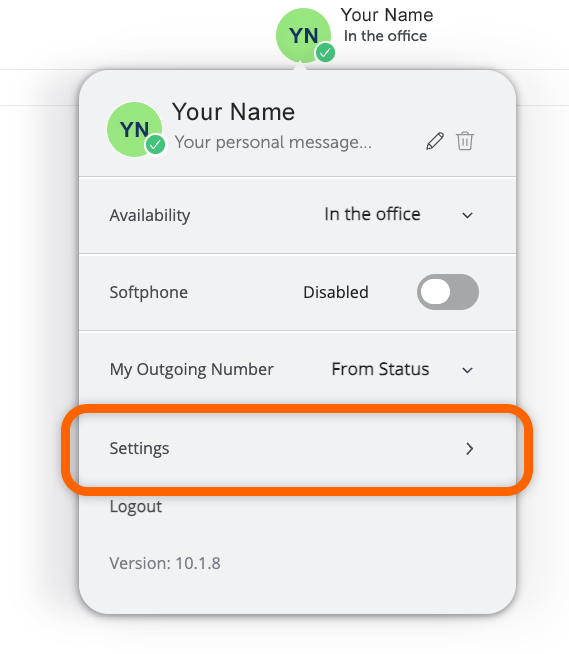
- On the right-hand side of the menu, select Self Deployment
- Click the drop-down, select SoftPhone (XX*XX), where XXXX is your extension
- Click or scan the QR code, depending on your device type:
- Desktop: Click the QR code and allow your browser to redirect you to the MiCollab app
- Mobile: Select Scan QR code in the MiCollab app then scan the QR code on your computer screen
- In the MiCollab app, enter your College password and click Next to finish logging in
Enable your SoftPhone
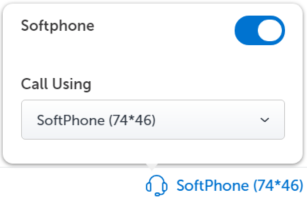
To use MiCollab to place and take phone calls, you will need to enable the SoftPhone feature inside the app or on the website.
Enable on desktop
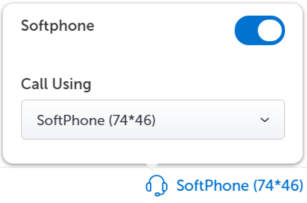
Enable on mobile

Enable on the website
Customize call flow & status
Advertise your availability and change what happens to incoming calls.
- Forward calls to another number
- Send calls to voicemail automatically
- …and more
Change Your Status
Change Your Call Flow
Create a Custom Status
Conference calls
Note: Microsoft Teams and Zoom are also available for conference calling.
- Open MiCollab
- At the top of the screen/window, click the icon or the Search or Dial box
- Enter the first phone number you’d like to dial
- You must use the correct formatting for dialing out
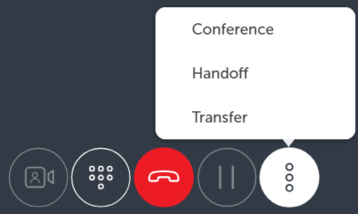
- Once connected, select the three-dot icon
- Select Conference
- Enter another phone number or user and click Consult
- Once connected, press Add to conference
- Repeat steps 4-6 to add other callers
Questions?
If you have any additional questions or problems, don't hesitate to reach out to the Help Desk!
Phone: 610-526-7440 | Library and Help Desk hours
Email: help@brynmawr.edu | Service catalog
Location: Canaday Library 1st floor
