This article reviews how to easily access your College OneDrive from a College or personal computer!
See also:
How does OneDrive work?
Logging into the OneDrive application makes it easy to access, copy, and edit your OneDrive files!
- Add OneDrive to File Explorer () or Finder ()
- Automatically login to OneDrive
- Copy-and-paste files to/from OneDrive like a folder
Attention: Logging into OneDrive does not automatically copy all files/folders from the computer to OneDrive, or vice versa. When automatic backup is enabled, you can control which files are backed up and how.
First-time setup
OneDrive is preinstalled on all College computers and can always be reinstalled from Software Center.
Attention: OneDrive on personal computers
You may need to install OneDrive using the links available on Microsoft's support page.
Note: OneDrive on shared computers
- Open OneDrive
- Windows : Click the Windows search menu > Search for "OneDrive"
- macOS : Open Finder > Applications > OneDrive
- Type in your College email and click Sign in
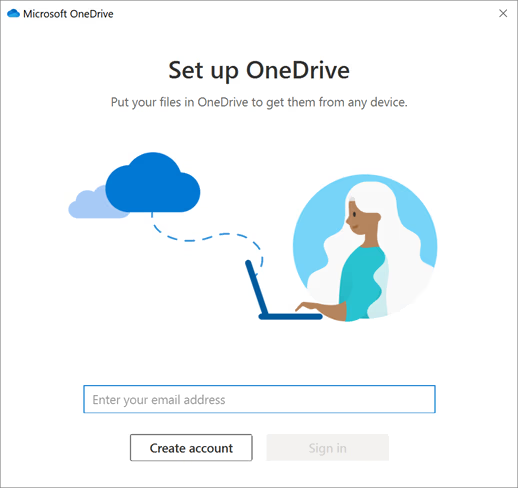
- Login with your College email and password, and authenticate with Duo
- Click Next and follow the on-screen instructions to complete setup
- Windows (): You will be prompted to enable OneDrive's optional automatic backup.
Access files
- Open File Explorer () or Finder ()
- On the left-hand side, click OneDrive
Files On-Demand
By default, your files are stored as links that don't take up storage space. When you create a file, or open it for the first time, it is downloaded to your computer (e.g., "on-demand") and remains there until it isn't opened for 60 days.
Check file availability
The availability of a file or folder is indicated by the status icon next to its filename:
- Available when online: files that are in OneDrive, but not on your device
- You will not be able to access these files without an internet connection.
- Available on this device: files that are on your device and available offline
- Always on this device: files that will always be on your device
Note: Unable to see these icons?
Within File Explorer () or Finder (), you may need to change your View to "List" or "Details".
Change file availability
Right-click () or control-click () a file or folder to manually change its availability:
- Free up space: reverts the file/folder into an on-demand link
- Always keep on this device: ensures the file/folder will always be on your device and available offline
Automatic backup (optional)
When enabled, OneDrive can automatically back up your Desktop, Documents, and Pictures folders to prevent data loss should your device malfunction.
Warning: Be sure the files you work with can be stored in OneDrive, per the College's Data Handling Policy and Data Handling Storage Guidelines.
Windows
macOS
Questions?
If you have any additional questions or problems, don't hesitate to reach out to the Help Desk!
Phone: 610-526-7440 | Library and Help Desk hours
Email: help@brynmawr.edu | Service catalog
Location: Canaday Library 1st floor
